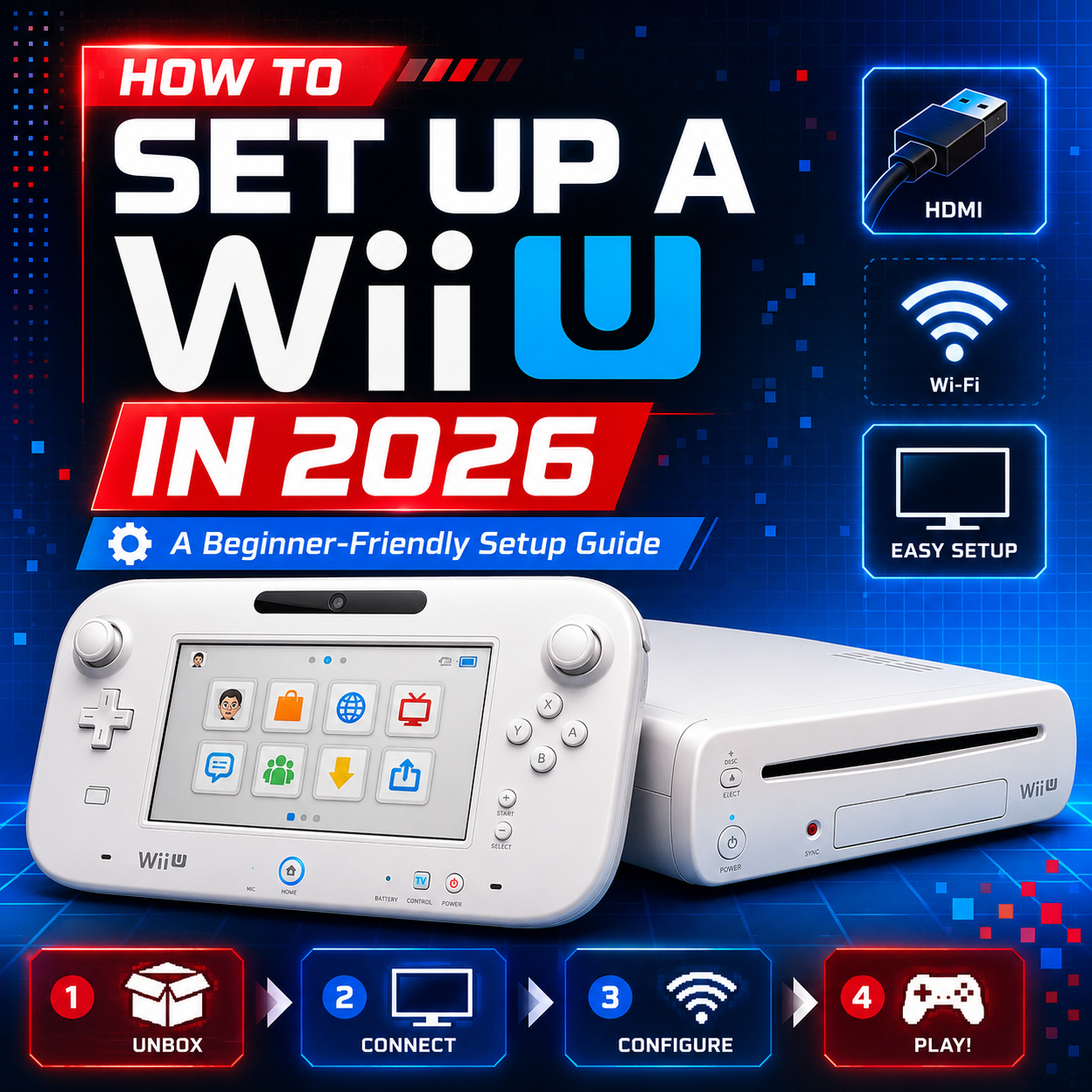
Summary
Setting up a Nintendo Wii U in 2026 is still very possible, but there are a few important things to know before you start. The Wii U is no longer supported like a current Nintendo console, and some of its online features have been discontinued. New purchases through the Wii U eShop ended on March 27, 2023, and standard online play for Wii U software ended on April 8, 2024. However, Nintendo still allows users to redownload previously purchased games and DLC, and software updates remain available for the foreseeable future. (Nintendo Support)
This guide walks you through what you need, how to connect your Wii U, how to sync the GamePad, how to get online for updates and redownloads, what accessories work, and how to troubleshoot common setup problems.
The Wii U may be an older console now, but it still has a fantastic library, excellent Wii backwards compatibility, and one of Nintendo’s most unique controller setups.
Introduction: The Wii U Is Still Worth Setting Up
The Nintendo Wii U is one of Nintendo’s strangest and most misunderstood consoles. It followed the wildly successful Wii, introduced a large touchscreen GamePad controller, and experimented with second-screen gaming years before the Nintendo Switch became a household name.
It did not reach the same level of popularity as the Wii or Switch, but that does not mean the Wii U should be ignored. In fact, the Wii U has become a very interesting console for collectors, Nintendo fans, families, and retro gamers. It plays Wii U games, supports Wii game discs, works with many Wii accessories, and has a library packed with excellent first-party Nintendo titles.
If you just bought a used Wii U, pulled one out of storage, or picked one up from Power Up Gaming, this guide will help you get everything connected and working properly.

What You Need Before You Start
Before setting up your Wii U, make sure you have the correct parts. A lot of used systems are sold missing one or two important accessories, and the Wii U is not a console you can fully set up with just any random controller.
Required Wii U Setup Items
You will need:
-
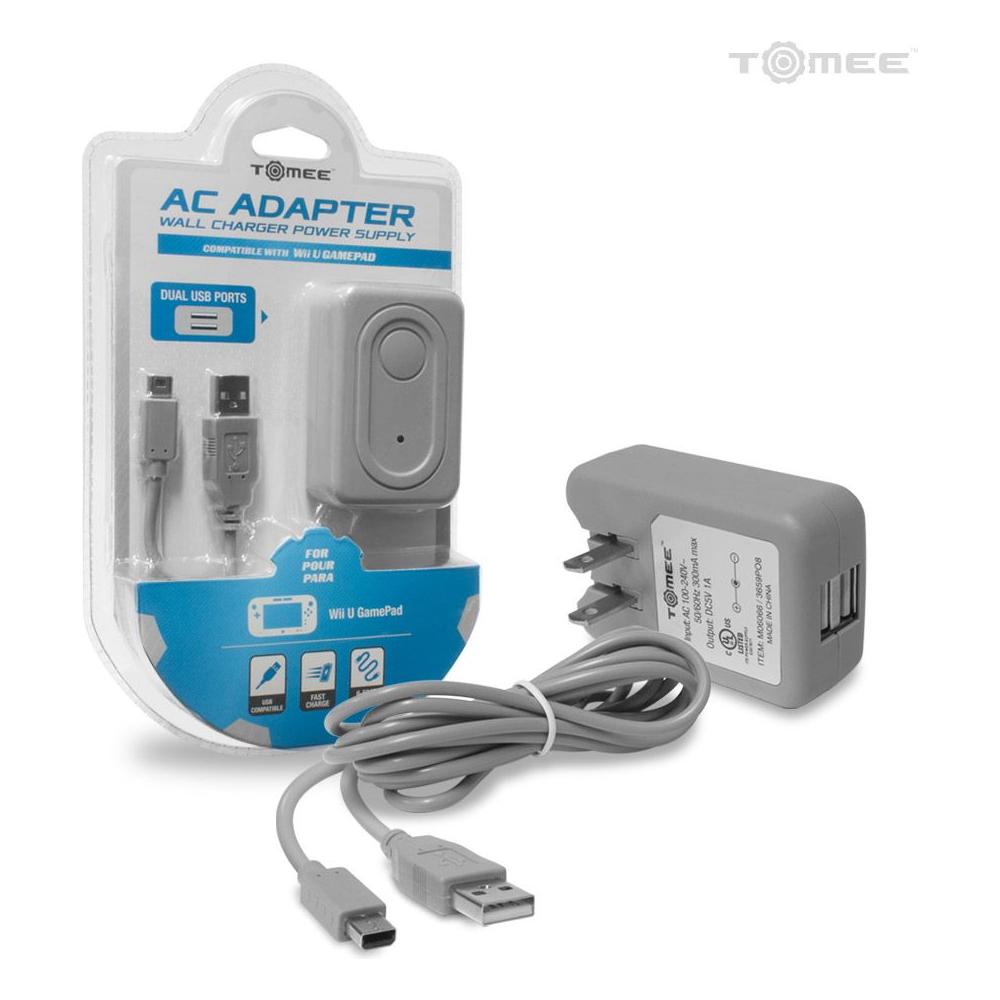
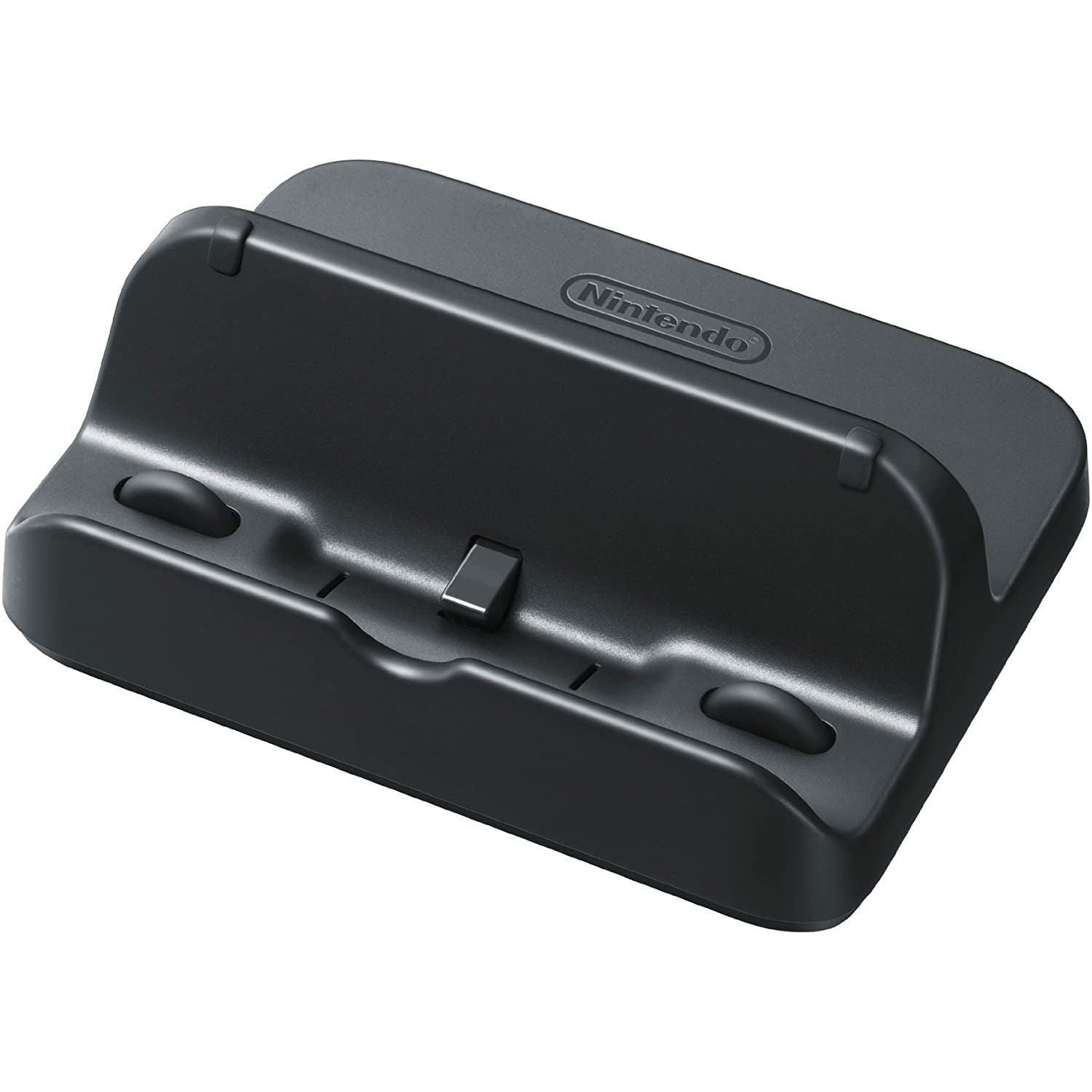
Wii U GamePad charger
-
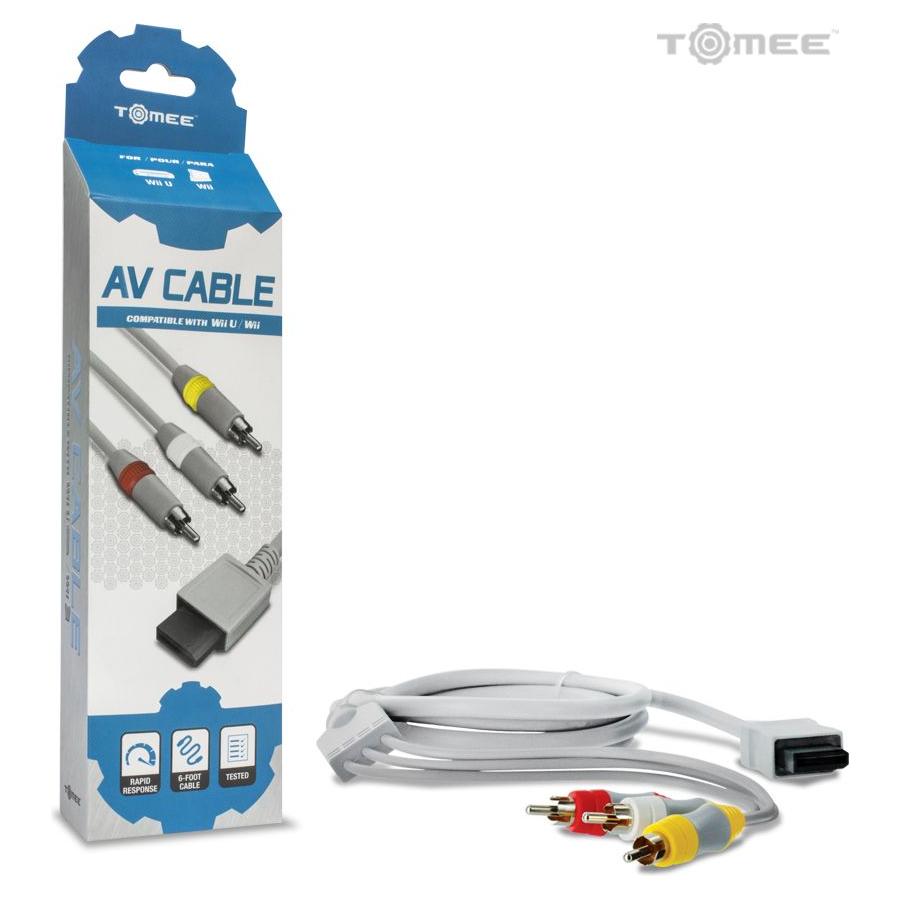
HDMI cable or compatible AV/component cable
-
Television or monitor
-
Internet access if you want system updates or redownloads
-
Sensor Bar if you plan to use Wii Remotes or play Wii games
The GamePad is especially important. The Wii U is designed around it, and Nintendo’s setup process uses the GamePad during first-time configuration. (Nintendo Support)
Helpful Accessories
Depending on how you plan to use the console, you may also want:
-
Wii Remote
-
Extra GamePad charging cable
If you are buying a used Wii U, it is worth checking exactly what is included before purchasing. A cheap Wii U bundle may not be so cheap if it is missing the GamePad charger, Sensor Bar, or proper power supply.

Step-by-Step Wii U Setup
Step 1: Place the Console Somewhere Safe
Put the Wii U on a flat, stable surface with decent airflow. Avoid tight spaces where heat can build up. Nintendo recommends keeping the console at least 4 inches, or 10 cm, away from walls or surfaces that could block ventilation. (Nintendo Support)
This is especially important with older used consoles. Good airflow helps keep the system running properly and reduces unnecessary heat stress.
Step 2: Connect the Wii U to Your TV
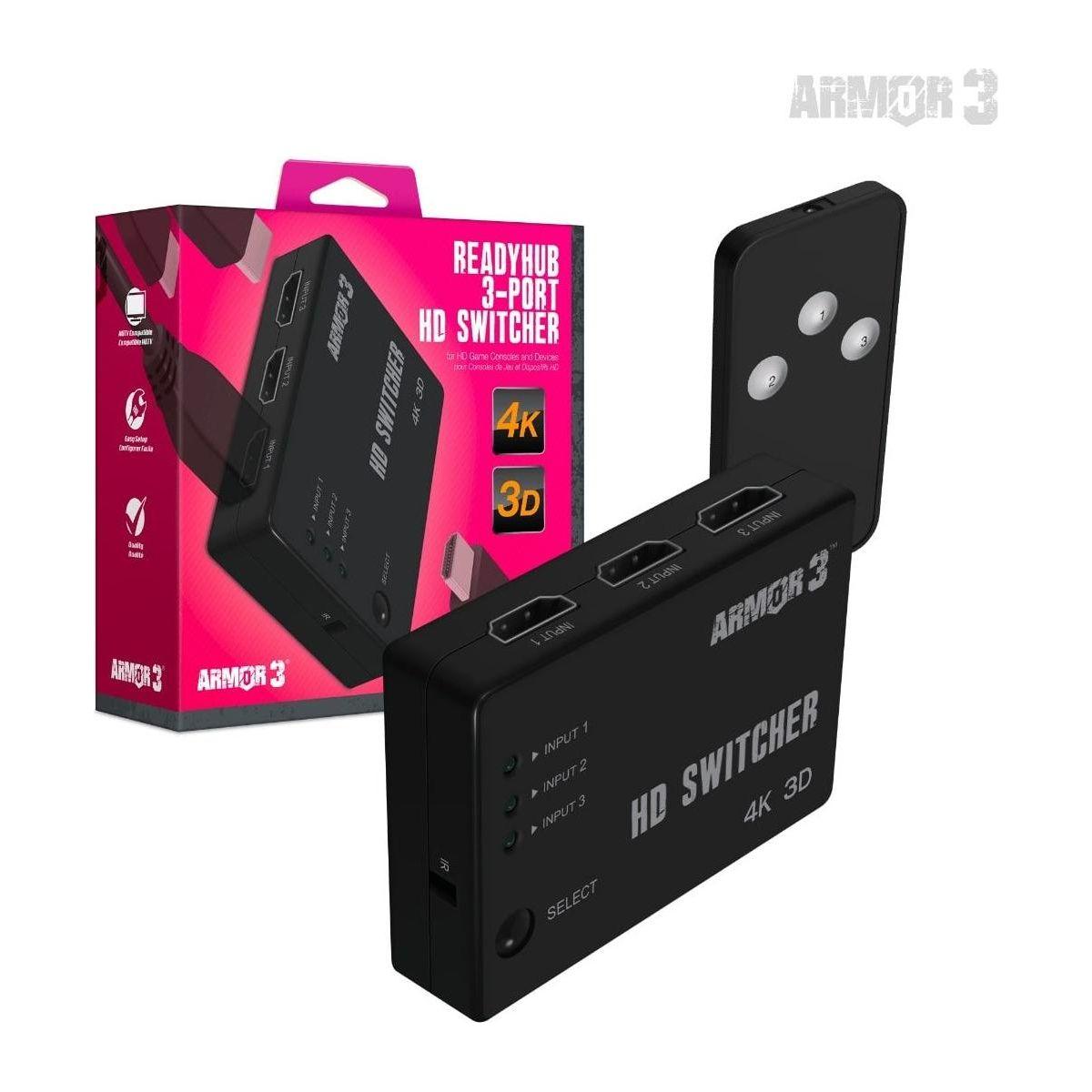
The easiest way to connect a Wii U to a modern television is with an HDMI cable.
Plug one end of the HDMI cable into the back of the Wii U and the other end into an HDMI port on your TV. Then turn on your TV and switch to the correct HDMI input.
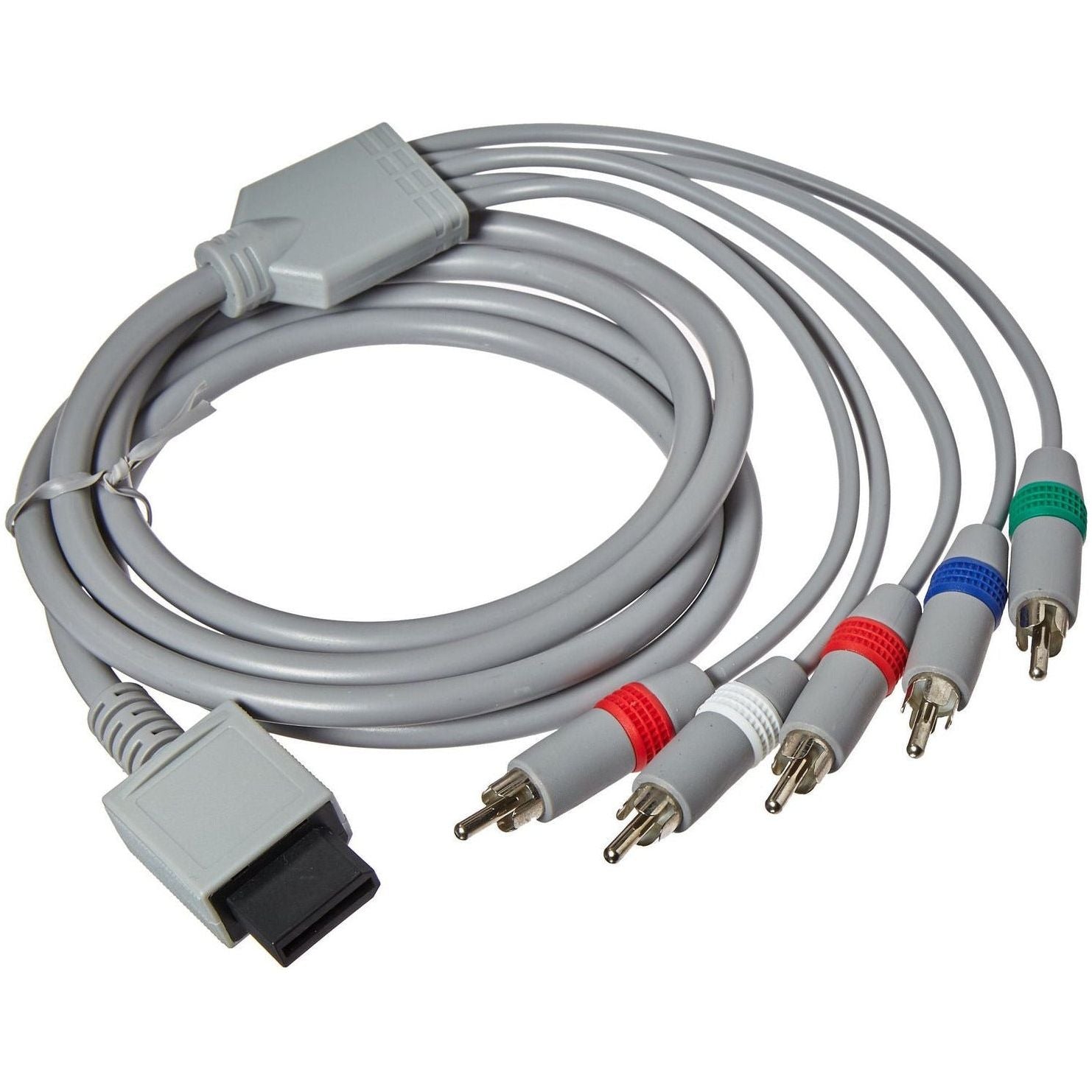
If you are using an older TV, the Wii U can also work with compatible Wii AV or component cables. HDMI is usually the best and simplest option if your TV supports it. (Nintendo Support)
Step 3: Connect the Power Adapters
The Wii U uses separate power connections for the console and GamePad.
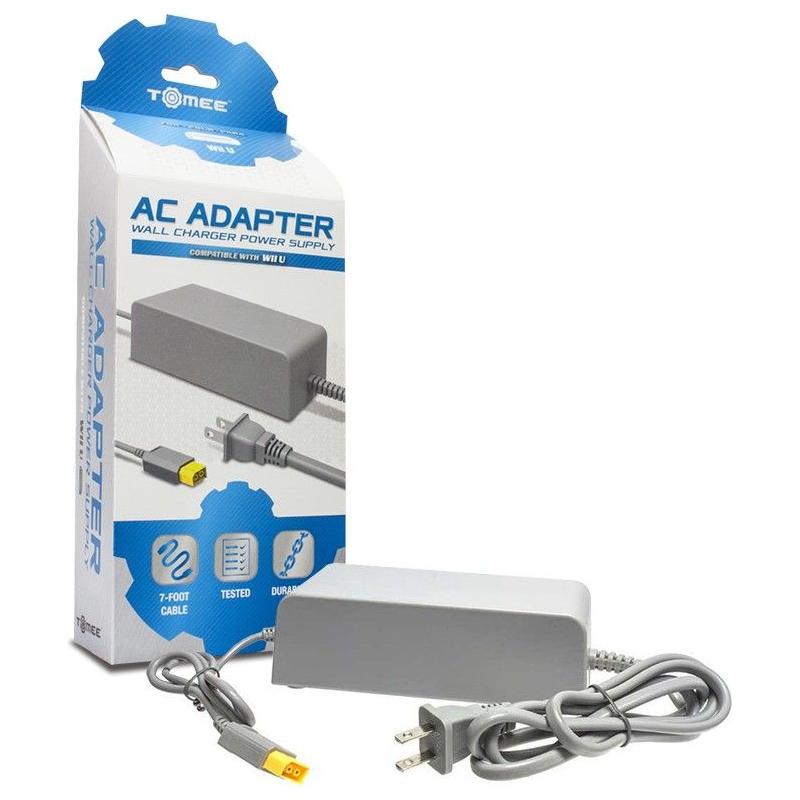
Plug the Wii U console power adapter into the back of the system, then into the wall. Plug the GamePad charger into the GamePad and charge it before continuing.
If the GamePad battery is completely dead, give it a little time before trying to complete setup.
Step 4: Turn On the Console and GamePad
Press the power button on the Wii U console. Then turn on the Wii U GamePad.
If you do not see anything on your TV, check the basics first:
-
Is the Wii U powered on?
-
Is the HDMI cable fully connected?
-
Is the TV on the correct input?
-
Have you tried a different HDMI port?
A blank screen is often just an input issue, not a broken console.
Step 5: Sync the Wii U GamePad
If your GamePad is not already paired to the console, you will need to sync it.
To sync the Wii U GamePad:
-
Turn on the Wii U console.
-
Turn on the Wii U GamePad.
-
Press the SYNC button on the front of the Wii U console.
-
Press the SYNC button on the back of the Wii U GamePad using the stylus.
-
Symbols will appear on the TV.
-
Tap the matching symbols on the GamePad in the same order.
Nintendo’s official setup instructions use this method to pair the GamePad with the console. (Nintendo Support)
If syncing fails, make sure the GamePad is charged and close to the console. You may also want to turn off any other Wii U consoles or GamePads nearby while pairing.
Setting Up Your Wii U Internet Connection
Connecting the Wii U to the internet is still useful in 2026, even though many online features have ended.
A connected Wii U can still be used for:
-
System updates
-
Game updates
-
Redownloading previously purchased digital games
-
Redownloading previously purchased DLC
The Wii U connects to the internet through Wi-Fi. It does not have a built-in Ethernet port. If you want a wired connection, you need a compatible Wii LAN Adapter connected through USB. (Nintendo Support)
Wi-Fi Setup
To connect using Wi-Fi:
-
Go to System Settings.
-
Select Internet.
-
Choose Connect to the Internet.
-
Select your Wi-Fi network.
-
Enter your Wi-Fi password.
-
Run the connection test.
If the connection fails, double-check the password and move the console closer to your router.
Wired Internet Setup
A wired connection requires a Wii LAN Adapter. Nintendo explains that the adapter connects to a USB port on the Wii U, and then an Ethernet cable connects from the adapter to your router or modem. (Nintendo Support)
This can be helpful if your Wi-Fi is weak, but it is not required for normal setup.

What Wii U Online Features Still Work in 2026?
This is where a lot of older Wii U setup guides are now wrong.
What No Longer Works
As of 2026, the Wii U is no longer a fully online-supported console.
You can no longer:
-
Buy new games from the Wii U eShop
-
Buy new DLC from the Wii U eShop
-
Download demos from the Wii U eShop
-
Redeem Wii U download codes
-
Use standard online multiplayer for Wii U games
-
Use most online communication features in Wii U software
Nintendo ended new Wii U eShop purchases on March 27, 2023, and ended standard Wii U online play on April 8, 2024. (Nintendo Support)
What Still Works
Nintendo still allows users to redownload previously purchased Wii U games and DLC. Software updates are also still available for the foreseeable future. (Nintendo Support)
That means it is still worth connecting your Wii U to the internet, especially if:
-
You own digital Wii U games
-
You bought DLC in the past
-
Your console has not been updated in years
-
Your physical games need updates
Nintendo Network ID vs Nintendo Account
One common mistake is saying that the Wii U uses a Nintendo Account. That is not quite right.
The Wii U uses a Nintendo Network ID, often called an NNID. Nintendo Accounts are the newer account system used for modern Nintendo services, while Nintendo Network IDs were used on Wii U and Nintendo 3DS. (Nintendo Support)
If you previously owned digital Wii U games, your Nintendo Network ID may be important for accessing redownloads.
If you bought a used Wii U, remember that digital games and purchases are usually tied to the previous owner’s account. Do not assume a used console includes permanent access to downloaded games unless that has been clearly discussed.

Navigating the Wii U Interface
Once setup is complete, the Wii U Menu becomes your main hub.
From the Wii U Menu, you can:
-
Launch Wii U games
-
Access System Settings
-
Manage users
-
Enter Wii Mode
-
View downloaded software
-
Adjust controller settings
-
Manage storage
-
Set up parental controls
The GamePad acts as the main controller for navigating the system. It also displays menus, touch controls, and certain game features.
One of the Wii U’s most unique features is that some games use both the TV and GamePad screen at the same time. Others allow off-TV play, where the game can be played directly on the GamePad screen.
Playing Wii Games on Wii U
The Wii U is backwards compatible with Wii game discs. This is one of the best reasons to own the console, especially if you want access to both Wii U and Wii libraries from one system. (Nintendo Support)
To play Wii games, you will usually need:
-
Sensor Bar
-
Wii Remote
-
Nunchuk, depending on the game
The Wii U GamePad can display Wii Mode, but it cannot be used as the controller for Wii games. Nintendo confirms that in Wii Mode, the GamePad is only used as a display. You still need Wii controllers to actually control Wii software. (Nintendo Support)
That is a very important detail if you are buying a Wii U specifically to play Wii games.
What Discs Work on Wii U?
The Wii U supports:
-
Wii U game discs
-
Wii game discs
The Wii U does not support:
-
DVD movies
-
Blu-ray movies
-
Music CDs
Nintendo confirms that the Wii U system supports Wii U and Wii game discs, but not GameCube discs, Blu-ray discs, DVD discs, CDs, or other media formats. (Nintendo Support)
So, while the Wii U is a great way to play Wii U and Wii games, it is not a DVD player, Blu-ray player, or GameCube replacement.
Wii U Accessories and Compatibility
The Wii U works with a wide range of accessories, but compatibility depends on the game.
Wii U GamePad
The GamePad is the primary controller for the Wii U. You need it for setup, menus, and many games.
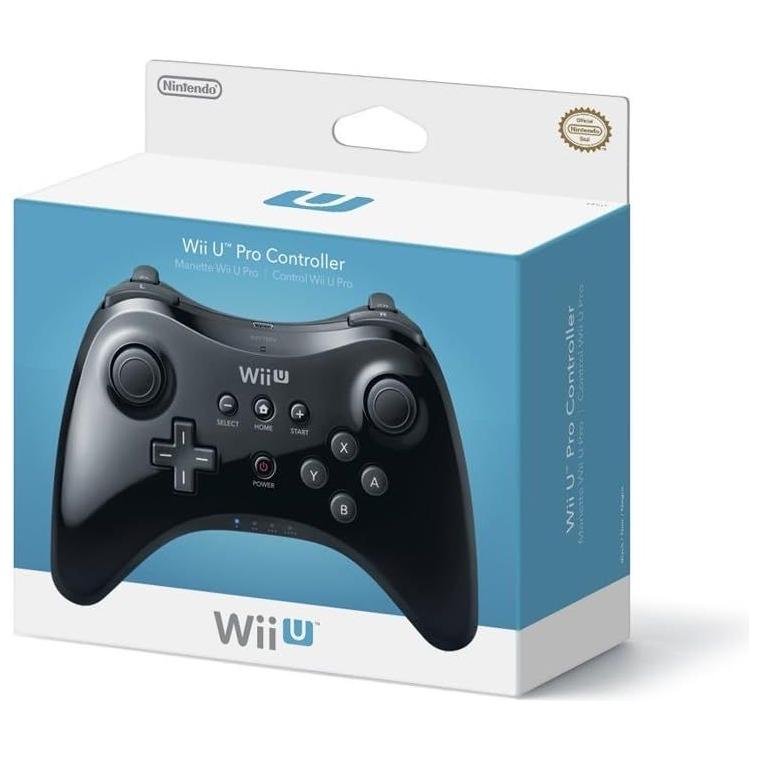
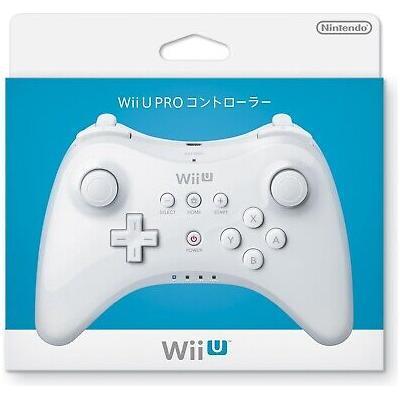
Wii U Pro Controller
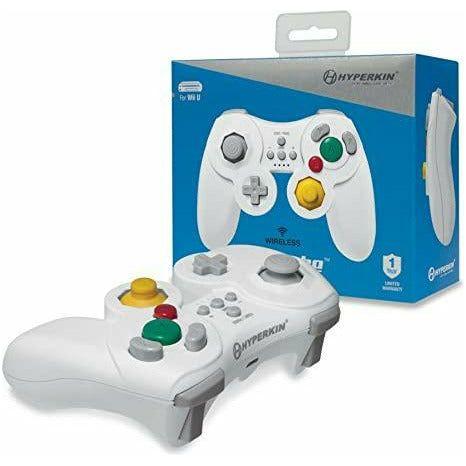
The Wii U Pro Controller is great for players who prefer a more traditional controller. It works with supported Wii U games and is especially comfortable for longer sessions.
Wii Remote and Nunchuk
Wii Remotes and Nunchuks are important for Wii games and some Wii U games. If you plan to use Wii Mode, these are strongly recommended.
Sensor Bar
The Sensor Bar is needed for Wii Remote pointer controls. If you are playing Wii games, make sure you have one.
External USB Storage
If you have a lot of digital games, DLC, or updates, external storage can be useful. Nintendo recommends using a hard drive with its own power source for best performance. (Nintendo Support)
Once a USB storage device is formatted for Wii U, it is tied to that console and cannot be used with another Wii U, PC, or Mac without being reformatted. Reformatting erases the data. (Nintendo Support)
Wii U Storage: 8GB vs 32GB Models
The Wii U was sold in two main storage versions:
-
8GB Basic Set
-
32GB Deluxe Set
In modern terms, neither is a large amount of storage. If you plan to use digital content, updates, or DLC, an external USB storage device may be a good idea.
For players mostly using physical discs, internal storage may be enough, but updates and save data can still take up space over time.

Troubleshooting Common Wii U Setup Issues
No Picture on the TV
Try this:
-
Make sure the Wii U is powered on.
-
Confirm the TV is set to the correct HDMI input.
-
Try another HDMI port.
-
Try another HDMI cable.
-
Make sure the console is not plugged into a TV output port by mistake.
-
If using AV or component cables, confirm the cables are plugged into input ports, not output ports.
GamePad Will Not Sync
Try this:
-
Charge the GamePad.
-
Restart the console.
-
Press the SYNC button on the console first.
-
Press the SYNC button on the back of the GamePad.
-
Enter the symbols shown on the TV correctly.
-
Move the GamePad closer to the console.
Wii Remote Cursor Does Not Show Up
Try this:
-
Make sure the Sensor Bar is connected.
-
Check whether the Sensor Bar is above or below the TV.
-
Match the Sensor Bar position in System Settings.
-
Replace the Wii Remote batteries.
-
Make sure nothing is blocking the Sensor Bar.
Wii U Will Not Connect to Wi-Fi
Try this:
-
Re-enter the Wi-Fi password.
-
Restart your router.
-
Move the Wii U closer to the router.
-
Try a different wireless network if available.
-
Use a Wii LAN Adapter for a wired connection.
System Update Takes a Long Time
This is normal if the console has been offline for years. Do not unplug the console during an update. Let it finish.
A Disc Will Not Read
Try this:
-
Make sure the disc is a Wii U or Wii game.
-
Check the disc for scratches or damage.
-
Clean the disc carefully.
-
Try another game to see if the issue is the disc or console.
-
Remember that GameCube, DVD, Blu-ray, and CD discs will not work on Wii U.
Power Up Gaming inspects and tests pre-owned games before selling them, which helps reduce the guesswork when buying used games for older systems.
Is the Wii U Still Worth Owning in 2026?
Yes, especially for the right kind of player.
The Wii U is worth owning if you want:
-
A unique Nintendo console
-
Access to Wii U physical games
-
Backwards compatibility with Wii discs
-
A fun local multiplayer machine
-
A collector-friendly Nintendo system
-
A way to enjoy games that have not all been perfectly replaced on Switch
It is not the best choice if you mainly want online multiplayer, new digital purchases, or modern Nintendo services. But as a physical game console and retro gaming machine, the Wii U still has plenty of value.

Buying Wii U Games and Accessories in Canada
Since the Wii U is discontinued, most games, consoles, and accessories are now found through the used and retro gaming market.
When buying used Wii U products, check for:
-
Working GamePad
-
GamePad charger
-
Console power supply
-
Sensor Bar, if needed
-
Clean disc condition
-
Included manuals or cases, if that matters to you
Power Up Gaming carries a rotating selection of Wii U games, consoles, and accessories when available. Since Wii U inventory changes constantly, it is worth checking back if you are rebuilding a collection or hunting for a specific title.
Final Thoughts
The Wii U may not be Nintendo’s current console, but it remains a fascinating part of Nintendo history. It is quirky, creative, and still very playable when set up correctly.
The most important thing is knowing what has changed. The eShop no longer sells new games, standard online play has ended, and the Wii U’s account system is based on Nintendo Network ID. But physical Wii U games still work, Wii backwards compatibility is still useful, and previously purchased digital content can still be redownloaded for now.
If you have the console, GamePad, power cables, and the right accessories, the Wii U can still deliver a lot of fun in 2026.
Frequently Asked Questions
Do I need the Wii U GamePad to set up the console?
Yes. The Wii U GamePad is required for the first-time setup process and is a central part of how the system works. (Nintendo Support)
Can I still buy games from the Wii U eShop?
No. New Wii U eShop purchases ended on March 27, 2023. You can no longer buy new digital Wii U games or DLC through the eShop. (Nintendo Support)
Can I still redownload Wii U games I already bought?
Yes. Nintendo says previously purchased Wii U games and DLC can still be redownloaded for the foreseeable future. Software updates are also still available. (Nintendo Support)
Does Wii U online play still work?
Standard online play and other online communication features for Wii U software ended on April 8, 2024. (Nintendo Support)
Does the Wii U have an Ethernet port?
No. The Wii U does not have a built-in Ethernet port. It connects to the internet through Wi-Fi, or through USB with a compatible Wii LAN Adapter. (Nintendo Support)
Can the Wii U play Wii games?
Yes. The Wii U can play Wii game discs as well as Wii U game discs. (Nintendo Support)
Can the Wii U play GameCube games?
No. The Wii U does not support GameCube discs.
Can the Wii U play DVDs or Blu-rays?
No. The Wii U does not play DVD movies, Blu-ray movies, CDs, or GameCube discs. (Nintendo Support)
Can I use the Wii U GamePad to control Wii games?
No. In Wii Mode, the Wii U GamePad can be used as a display, but its buttons and touchscreen do not control Wii games. You need a Wii Remote and other required Wii accessories. (Nintendo Support)
Do I need a Sensor Bar for Wii U?
Not for every Wii U game, but you need a Sensor Bar for Wii Remote pointer controls and many Wii games.
Is a Wii U Pro Controller required?
No, but it is a great optional controller for supported Wii U games. Many players prefer it for longer sessions.
Should I use external storage with Wii U?
If you plan to use digital games, DLC, or many updates, external USB storage is helpful. Nintendo recommends a hard drive with its own power source for best performance. (Nintendo Support)
Is the Wii U worth buying in 2026?
Yes, for physical game collectors, Nintendo fans, local multiplayer, and anyone interested in Wii U and Wii libraries. It is not ideal if your main goal is modern online play, but it is still a great legacy console.