Summary
The Nintendo Wii is still one of the easiest retro consoles to enjoy, especially if you want something fun, family-friendly, and packed with great local multiplayer games. Whether you just found your old Wii in storage, bought one second-hand, or picked one up from Power Up Gaming, getting it running is usually pretty simple once you know what each part does.
The biggest thing to understand today is that the Wii was built for older TVs. Most modern televisions no longer have the red, white, and yellow AV ports the Wii originally used, so many players will need a Wii-to-HDMI adapter or component cables to connect it properly.
This guide will walk you through what should come with a Wii, how to connect it to your TV, how to sync your Wii Remote, how to use the Sensor Bar, what Wii models can play GameCube games, which accessories are worth owning, and how to troubleshoot the most common problems.
Why the Nintendo Wii Is Still Worth Owning
The Nintendo Wii was released in 2006, but it still holds up as one of the most fun consoles Nintendo has ever made. It was not just another gaming system. It was the console that got parents, grandparents, kids, casual players, and longtime gamers all playing together in the same room.
The Wii’s motion controls made games feel instantly approachable. You did not need to memorize complicated button combinations to enjoy bowling in Wii Sports, racing in Mario Kart Wii, or swinging a sword in The Legend of Zelda: Twilight Princess. You just picked up the Wii Remote and started playing.
That is a big reason the Wii is still popular today. It is simple, social, nostalgic, and full of games that are easy to recommend. It is also a great retro console for families, parties, cottages, game rooms, and anyone who wants something fun without needing to spend modern console money.
At Power Up Gaming, we still see a lot of interest in the Wii because it hits that perfect retro sweet spot. It is old enough to feel nostalgic, but modern enough that most people can still understand it right away.
What Should Come With a Nintendo Wii?
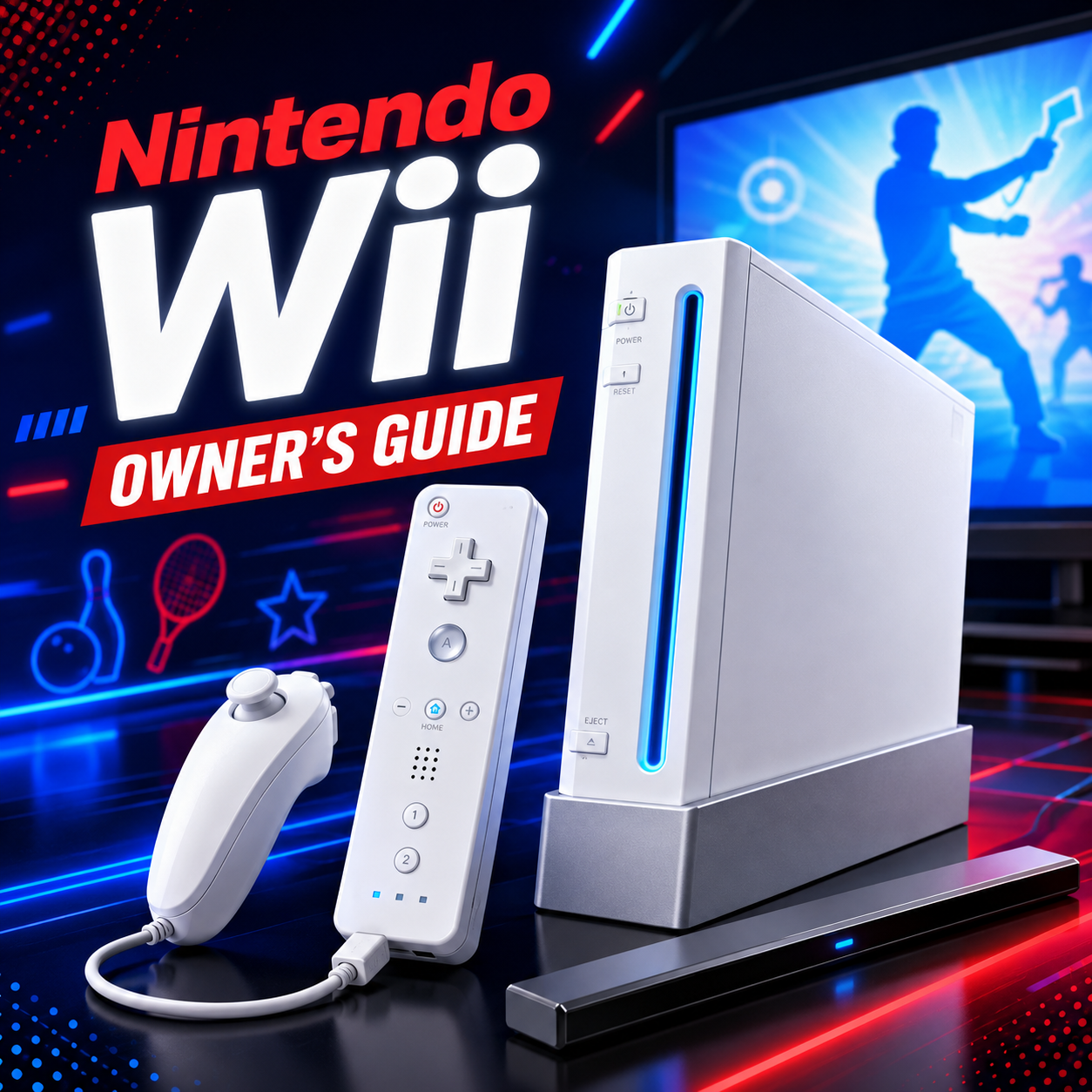
A complete Nintendo Wii setup usually includes the following pieces:
-
Nintendo Wii console
-
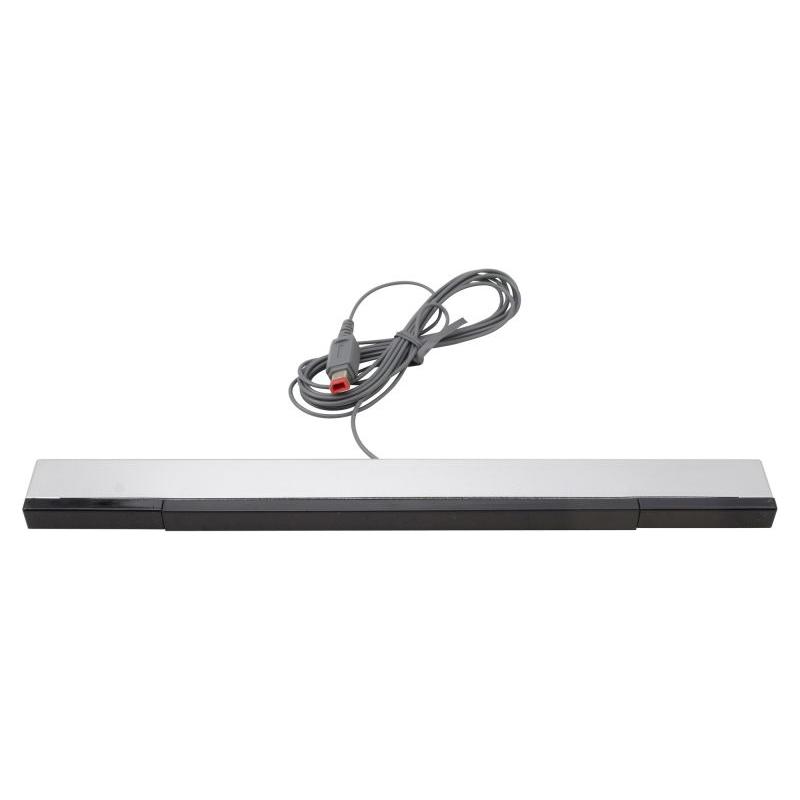
Wii Sensor Bar
-
Wii AV cable, component cable, or HDMI adapter
-
Wii Remote
-
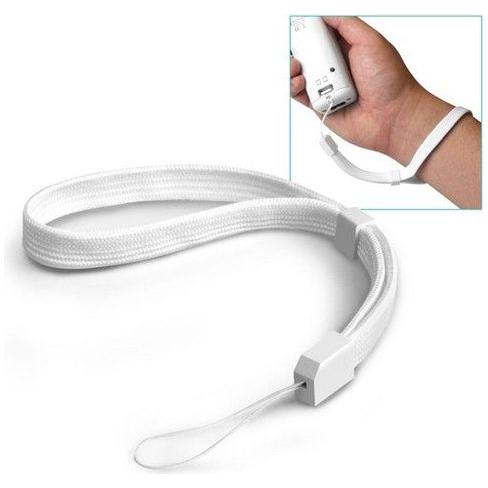
Wii Remote wrist strap
-
Nunchuk controller
-
Console stand, depending on the model and bundle
If you are buying a used Wii, always make sure the power adapter, Sensor Bar, and at least one working Wii Remote are included. Those are the pieces people lose most often, and missing any one of them can make the console frustrating to set up.
The Sensor Bar is especially important. A Wii can power on without it, but you will have a miserable time trying to navigate the menu because the pointer will not track properly.
Know Which Wii Model You Have
Before setting everything up, it helps to know which version of the Wii you own.
Original Wii Model RVL-001
This is the most desirable version for many retro gamers. It usually stands vertically in a silver or grey stand, and it has hidden GameCube controller ports and memory card slots under flaps on the side.
The original RVL-001 Wii can play:
-
Nintendo Wii games
-
GameCube games using original GameCube controllers and memory cards
If you care about GameCube compatibility, this is the Wii model you want.
Wii Family Edition Model RVL-101
The Wii Family Edition was a later redesign. It is usually designed to sit horizontally and does not include GameCube controller ports or GameCube memory card slots.
It can play Wii games, but it cannot play GameCube games.
Wii Mini Model RVL-201
The Wii Mini is the small red and black version of the console. It looks cool, but it is the most limited Wii model.
The Wii Mini:
-
Plays Wii discs
-
Does not play GameCube games
-
Does not connect to the internet
-
Does not support SD cards
-
Has fewer features than the original Wii
The Wii Mini is fine if you only want a basic Wii game player, but most people are better off with the original model if they want the full Wii experience.
Before You Start Setting Up Your Wii
Before plugging everything in, take a minute to check your setup area.
You will want:
-
A stable surface near your TV
-
Access to a power outlet
-
Enough space around the console for airflow
-
Room in front of the TV for motion controls
-
Fresh AA batteries for the Wii Remote
-
The proper video connection for your TV
Do not cram the Wii into a tight space with no airflow. These consoles are reliable, but they are older now, and heat is never a friend to electronics.
Also, if you are setting this up for kids, this is a good time to think about parental controls. The Wii has built-in parental control settings that can restrict certain content and features.

How to Connect a Wii to a TV
This is the part that causes the most confusion today.
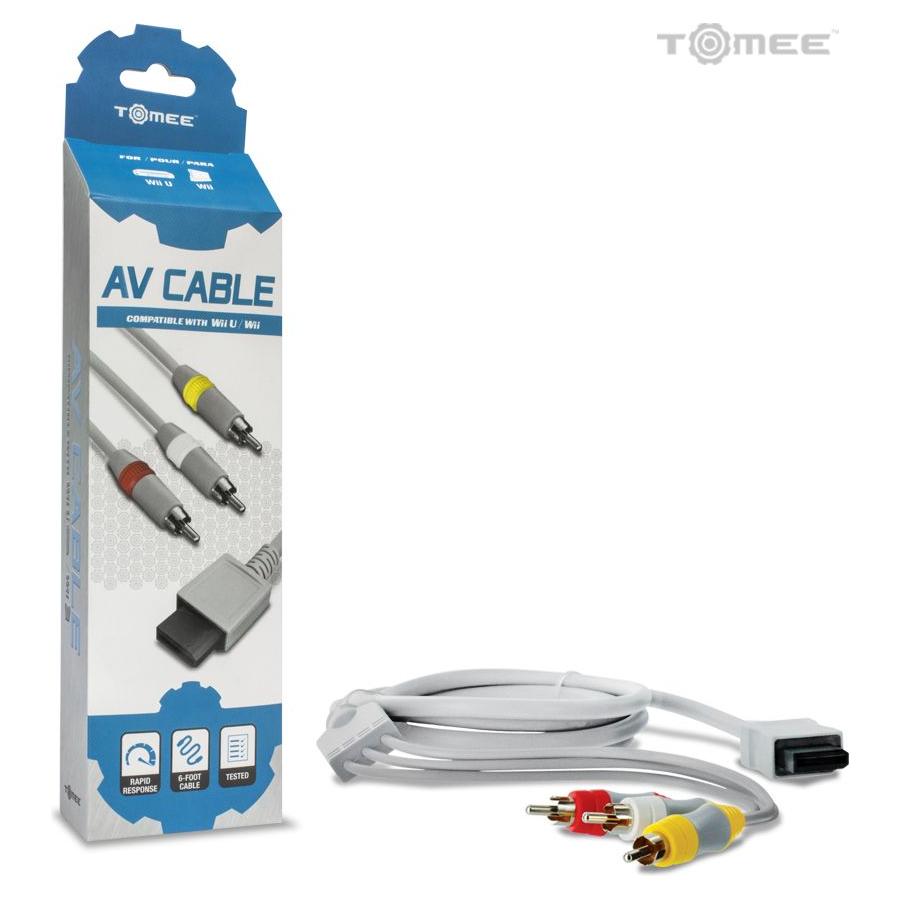
The Wii was built before HDMI became the standard on nearly every TV. It does not have a built-in HDMI port. The original cable that came with most Wii consoles uses the classic red, white, and yellow AV plugs.
That worked great in 2006. In 2026, not so much.
Most modern TVs no longer have those ports, so you may need an adapter.
Option 1: Use the Original Wii AV Cable
The standard Wii AV cable has three coloured plugs:
-
Yellow for video
-
Red for right audio
-
White for left audio
If your TV has matching inputs, plug the coloured cables into the correct ports, then plug the other end into the back of the Wii.
After that, change your TV input to AV, Composite, or Video, depending on how your TV labels it.
This is the most basic way to connect a Wii, but the picture quality will not be as sharp as other options.
Option 2: Use Wii Component Cables
Wii component cables are a better option if your TV supports them. They use five plugs instead of three:
-
Red, green, and blue for video
-
Red and white for audio
Component cables can provide a cleaner picture and allow supported Wii games to display in 480p progressive scan.
This is one of the best official video options for the Wii, but many modern TVs no longer include component inputs.
Option 3: Use a Wii-to-HDMI Adapter
For most modern TVs, a Wii-to-HDMI adapter is the easiest solution.
The adapter plugs into the back of the Wii, then you connect an HDMI cable from the adapter to your TV.
This does not magically turn the Wii into a high-definition console, but it does make setup much easier on modern televisions. It also avoids the headache of hunting for old AV inputs that your TV may not even have.
If you are buying a Wii today, especially for a newer TV, grabbing a Wii-to-HDMI adapter is usually the simplest move.
SHOP WII HDMI ADAPTERS NOW
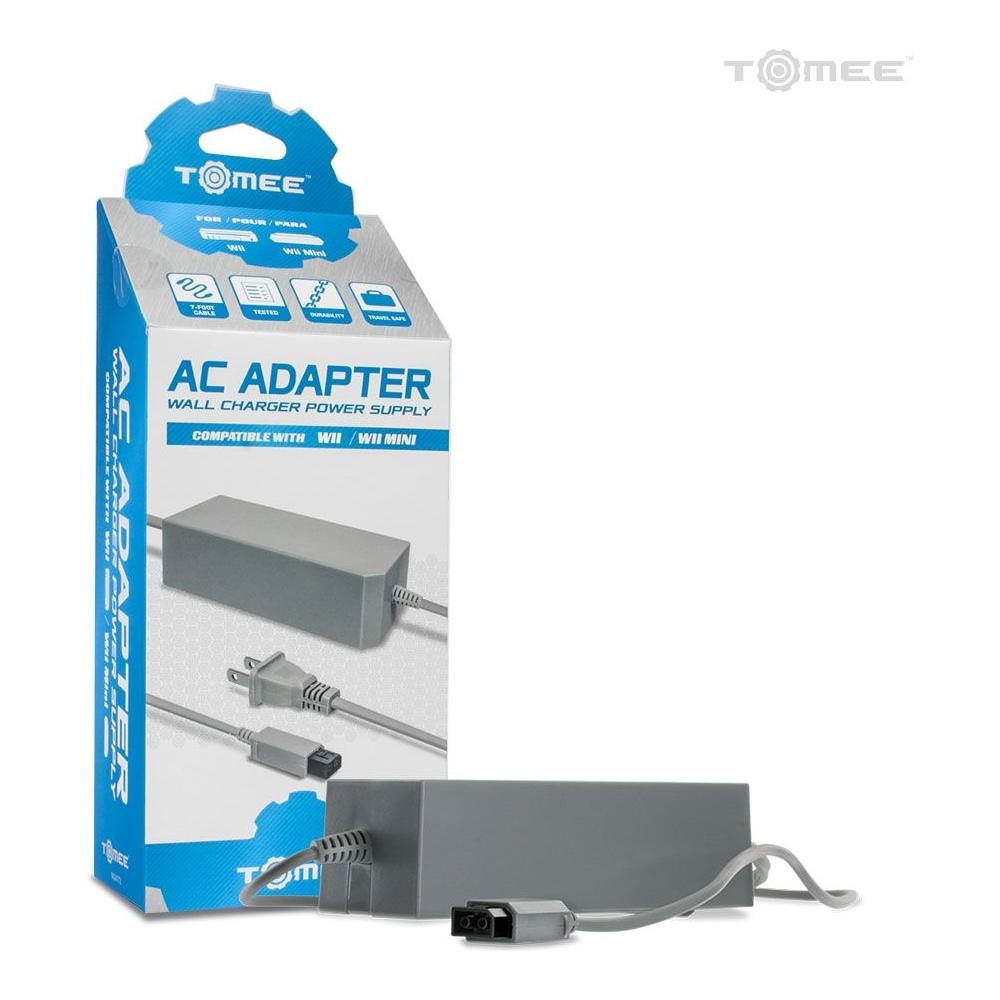
How to Connect the Wii Power Adapter
Once your video cable is connected, plug the power adapter into the back of the Wii. Then plug the other end into a wall outlet or surge protector.
When connected properly, the light on the front of the Wii should turn red. That means the console has power but is currently turned off.
Press the power button on the front of the Wii. The light should turn green, and the console should boot up.
If nothing happens, do not panic yet. Wii power adapters can sometimes need to be reset. Unplug the adapter from the wall and from the console, leave it unplugged for a couple of minutes, then plug everything back in and try again.
How to Set Up the Wii Sensor Bar
The Sensor Bar is one of the most important parts of the Wii setup.
Despite the name, the Sensor Bar does not really “sense” the Wii Remote. It gives the Wii Remote infrared points to track, which helps the remote know where it is pointing on the screen.
Plug the Sensor Bar into the back of the Wii, then place it either:
-
Above your TV, centred with the screen
-
Below your TV, centred with the screen
After that, go into the Wii settings and make sure the Sensor Bar position matches where you placed it.
If your pointer feels jumpy, disappears, or does not line up properly, check the Sensor Bar first. Make sure it is plugged in, centred, and not blocked by anything.
Bright sunlight, reflective surfaces, candles, and other infrared light sources can also interfere with the Wii Remote pointer. The Wii is charming, but it is also very dramatic about lighting sometimes.

How to Sync a Wii Remote
If your Wii Remote is not connected to the console, you will need to sync it.
Here is how to do it:
-
Turn on the Wii console.
-
Open the small SD card slot cover on the front of the Wii.
-
Open the battery cover on the back of the Wii Remote.
-
Press the red SYNC button inside the Wii Remote battery compartment.
-
Quickly press the red SYNC button on the front of the Wii console.
-
Wait for the lights on the Wii Remote to stop flashing.
When one blue light stays solid, the remote is synced.
If the lights keep flashing and then turn off, replace the batteries and try again.
Completing the First-Time Wii Setup
Once the Wii is connected and your remote is synced, the system will guide you through the setup process.
You may need to choose:
-
Language
-
Country or region
-
Date and time
-
Screen format
-
Sensor Bar position
-
Internet settings, depending on your Wii model
Make sure the date and time are correct. It seems like a small thing, but some games and system features use the internal clock.
Choosing the Right Screen Settings
If you are using a widescreen TV, go into:
Wii Options > Wii Settings > Screen > Widescreen Settings
From there, choose 16:9 widescreen.
If you are using an older square-style TV, choose 4:3 standard.
If you are using component cables, you may also be able to set the Wii to 480p. This gives you the best official video output the Wii can provide.
If the picture looks stretched, squished, or weird, check both the Wii screen settings and your TV’s picture settings.

Understanding the Wii Menu
The Wii Menu is the main home screen of the console. It is made up of different channels, each with its own purpose.
The Wii Menu is simple compared to modern consoles, which is honestly part of its charm. No endless ads, no giant updates before every game, no twelve layers of menus. Just point, click, and play.
Disc Channel
This is where you launch Wii game discs.
If you have an original GameCube-compatible Wii, this is also where compatible GameCube discs will appear.
Mii Channel
The Mii Channel lets you create custom characters called Miis. These little avatars appear in games like Wii Sports, Wii Play, Mario Kart Wii, and more.
The original Wii does not use Nintendo Network Accounts. That was a Wii U and Nintendo 3DS era feature. On the Wii, your Miis are stored locally on the console.
Photo Channel
The Photo Channel lets you view photos from an SD card. It is a very 2000s feature, but it still has a nostalgic charm if you want to mess around with old pictures on a TV screen.
Wii Settings
This is where you adjust system options such as:
-
Screen format
-
Sound
-
Date and time
-
Sensor Bar position
-
Internet settings
-
Data management
-
Parental controls
Can the Wii Still Go Online?
Yes and no.
Standard Wii models can still be connected to Wi-Fi in some cases, but most official online Wii services are no longer available.
Nintendo Wi-Fi Connection, which powered online play for many Wii games, shut down in 2014. That means official online multiplayer, leaderboards, matchmaking, and many online features no longer work.
The Wii Shop Channel also closed in 2019. You can no longer buy or download new games from it.
The Wii Mini does not support internet connectivity at all.
There are unofficial community projects that some advanced users explore to restore online play in certain games, but that is not part of the normal stock Wii experience and is not something most casual users need to worry about.
For most people, the Wii is best enjoyed today as an offline console with a fantastic library of physical games.
Does the Wii Still Get Updates?
The Wii can still attempt a system update from the settings menu on standard models that connect to the internet. However, the Wii is an old system, and Nintendo has not been actively adding modern features to it for many years.
If you bought a used Wii, it is worth checking for a system update once. After that, you probably will not need to think about it again.

Best Accessories for Wii Owners
The Wii is much better when you have the right accessories. A bare-minimum Wii setup works, but a complete setup makes the console way more enjoyable.
Extra Wii Remotes
You will want more than one Wii Remote if you plan to play multiplayer games.
A lot of the Wii’s best games are built around local multiplayer, so two to four remotes is ideal.
Nunchuk Controllers
The Nunchuk plugs into the bottom of the Wii Remote and is required for many games.
You will need a Nunchuk for games like:
-
The Legend of Zelda: Twilight Princess
-
The Legend of Zelda: Skyward Sword
-
Many action, adventure, and sports games
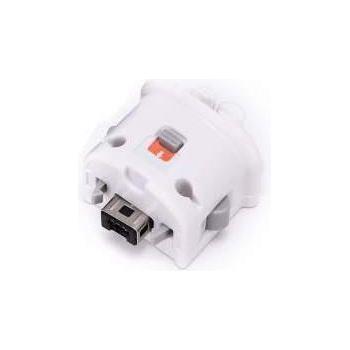
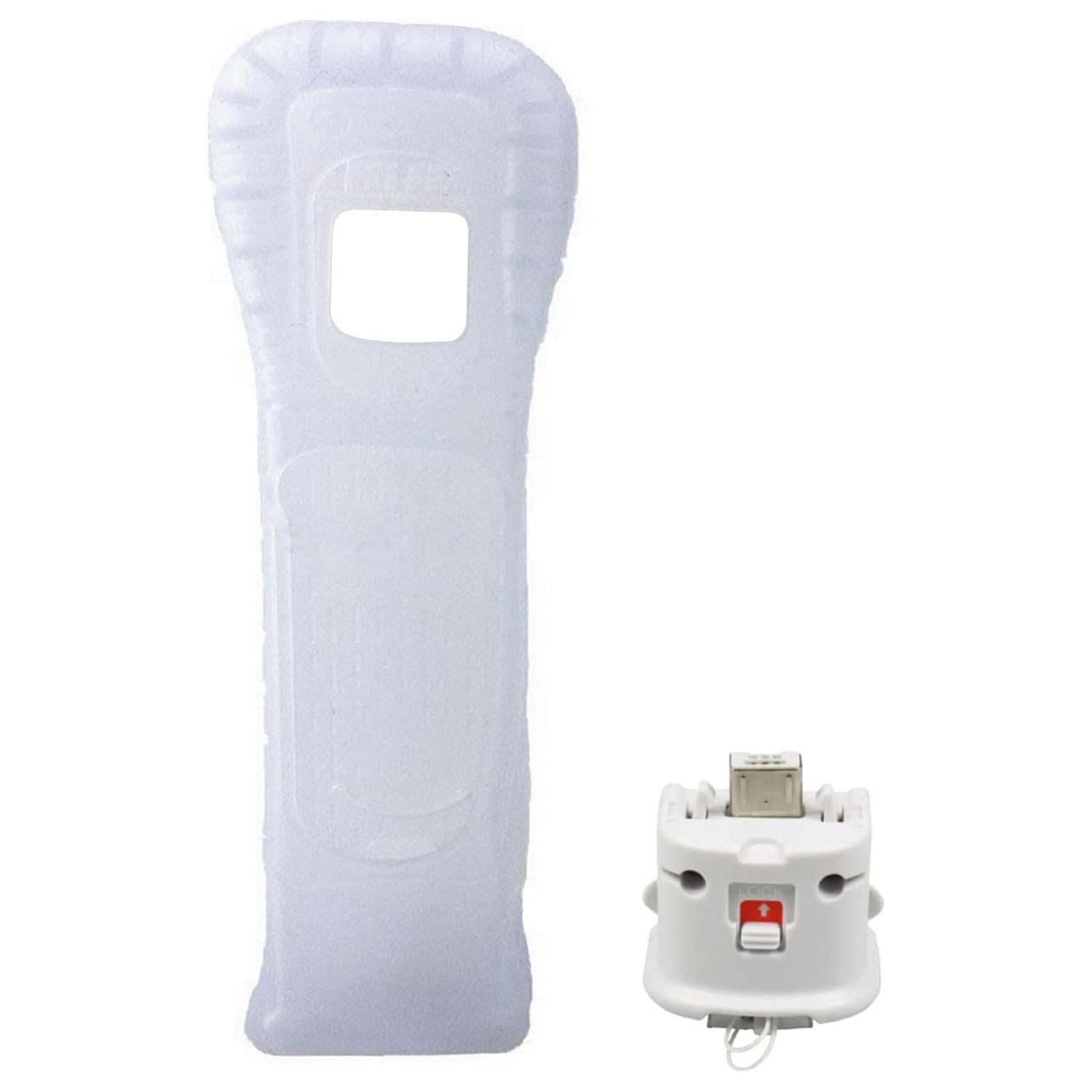
Wii MotionPlus or Wii Remote Plus
Some later Wii games require improved motion tracking. The original solution was the Wii MotionPlus attachment, which plugs into the bottom of a standard Wii Remote.
Later Wii Remote Plus controllers have MotionPlus built in.
Games like Wii Sports Resort require MotionPlus.
Classic Controller
The Classic Controller is useful for certain Wii games and retro-style games that play better with a traditional controller layout.
It plugs into the bottom of the Wii Remote.
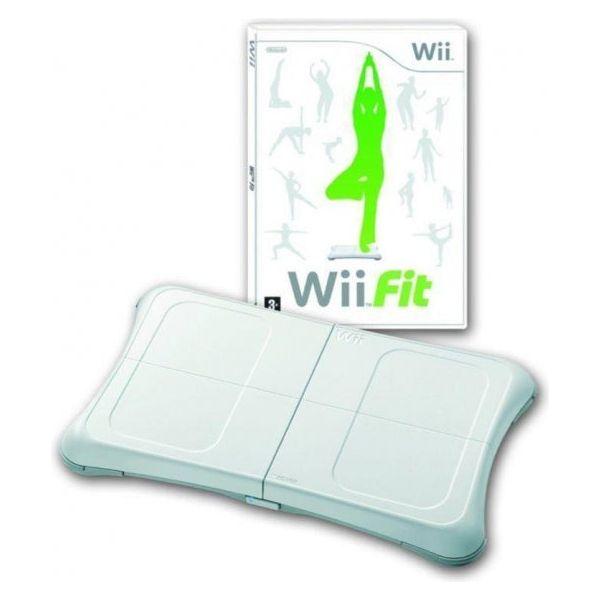
Wii Balance Board
The Wii Balance Board is best known for Wii Fit and Wii Fit Plus. It is not required for most games, but it is one of the most recognizable Wii accessories and still fun if you enjoy fitness or balance-based games.
Sensor Bar
You need a Sensor Bar for proper pointer control. If yours is missing or damaged, replace it. They are usually inexpensive, and without one, the Wii becomes much more annoying to use.
Great Wii Games to Start With
The Wii has a huge game library, but some titles are especially good starting points.
Wii Sports
This is the game everyone remembers. Bowling, tennis, baseball, golf, and boxing made the Wii famous.
It is still one of the best party games ever made.
Mario Kart Wii
A must-own if you like racing games or multiplayer chaos. It is fast, colourful, competitive, and still one of the most popular Wii titles.
Super Mario Galaxy
One of the best 3D Mario games ever made. It is creative, beautiful, and still plays incredibly well.
New Super Mario Bros. Wii
A fantastic side-scrolling Mario game with local multiplayer. It is great for families, but be warned, four-player Mario can turn into absolute living room warfare.
Wii Sports Resort
A bigger follow-up to Wii Sports with swordplay, archery, table tennis, basketball, wakeboarding, and more.
Just remember that it requires Wii MotionPlus.
The Legend of Zelda: Twilight Princess
A darker, more traditional Zelda adventure and one of the best single-player games on the system.
Donkey Kong Country Returns
A challenging and excellent side-scrolling platformer with great level design.
Super Smash Bros. Brawl
A major Wii multiplayer title and a favourite for Nintendo fans.
How to Take Care of Your Wii
The Wii is a reliable console, but it is also old now. A little care can keep it running for years.
Keep It Clean
Wipe the outside of the console with a soft, dry cloth. Avoid harsh cleaners, heavy moisture, or anything abrasive.
For controllers, use a slightly damp cloth for the outside and a cotton swab for tight areas around buttons.
Keep It Ventilated
Do not cover the vents or bury the console in an entertainment unit with no airflow.
Heat can shorten the life of electronics, especially older ones.
Remove Batteries Before Storage
If you are storing the Wii for a long time, remove the batteries from every Wii Remote and accessory.
Battery leakage can destroy controllers. This is one of the most common problems we see with older accessories.
Store Discs Properly
Keep Wii games in their cases when not in use. Avoid leaving discs loose on tables, stacked on top of each other, or sitting out where they can get scratched.
Scratches can cause read errors, freezing, skipping, or games not loading at all.
At Power Up Gaming, disc condition matters a lot. We take disc quality seriously because nobody wants to get home, boot up a game, and immediately be greeted by a disc read error.

Troubleshooting Common Wii Problems
My Wii Will Not Turn On
First, check that the power adapter is plugged firmly into both the Wii and the wall outlet.
If that does not work, reset the power adapter:
-
Unplug it from the wall.
-
Unplug it from the Wii.
-
Wait at least two minutes.
-
Plug it back in.
-
Try turning the Wii on again.
If it still does not work, the power adapter may have failed. Wii power adapters are replaceable and are a common part to swap when troubleshooting.
My Wii Remote Will Not Sync
Try these steps:
-
Replace the batteries.
-
Make sure the batteries are inserted correctly.
-
Press the red SYNC button on the remote.
-
Press the red SYNC button on the Wii.
-
Wait for one player light to stay solid.
If the remote still will not sync, try another Wii Remote if you have one. That helps determine whether the issue is the remote or the console.
My Wii Remote Pointer Is Not Showing Up
This is usually a Sensor Bar issue.
Check the following:
-
The Sensor Bar is plugged into the back of the Wii.
-
It is centred above or below the TV.
-
The Wii settings match the Sensor Bar placement.
-
Nothing is blocking the Sensor Bar.
-
You are not sitting too far away.
-
Bright sunlight or reflective lights are not interfering.
You can also try replacing the Sensor Bar if the cable is damaged.
My Wii Game Will Not Read
First, check the disc.
Look for:
-
Deep scratches
-
Dirt
-
Fingerprints
-
Cracks
-
Label damage
Clean the disc gently using a soft cloth, wiping from the centre outward.
Do not wipe in circles.
If multiple games fail to read, the console’s disc drive may be dirty or failing. If only one game fails, the disc is more likely the problem.
My Wii Has No Picture
Check the basics first:
-
Make sure the TV is on the correct input.
-
Make sure the video cable is plugged in firmly.
-
Try another input on the TV.
-
Try another cable or HDMI adapter if available.
-
Make sure the Wii power light is green.
If you are using a Wii-to-HDMI adapter, also make sure the HDMI cable works with another device.
My Wii Has Sound But No Video
This usually points to a cable or input issue.
If you are using the original AV cable, make sure the yellow plug is connected to the correct video input. Some modern TVs use shared component and composite ports, which can be confusing.
If you are using an HDMI adapter, try another HDMI cable or another HDMI port.
My Wii Picture Looks Bad on a Modern TV
The Wii was not designed for HD televisions, so it will never look as sharp as a modern console.
To improve the picture:
-
Use component cables if your TV supports them.
-
Use a decent Wii-to-HDMI adapter.
-
Set the Wii to widescreen if using a widescreen TV.
-
Enable 480p if your setup supports it.
-
Adjust your TV’s picture settings.
The Wii has a softer image by nature, especially on large 4K TVs.
Can You Back Up Wii Save Data?
Yes, many Wii save files can be copied to an SD card through the Data Management menu.
To do this:
-
Insert an SD card into the Wii.
-
Go to Wii Options.
-
Choose Data Management.
-
Choose Save Data.
-
Choose Wii.
-
Select the save file.
-
Choose Copy.
Not every save file can be copied, but many can.
This is worth doing if you have important game progress, rare Miis, or an older console that you are worried may eventually fail.
Should You Buy a Wii Today?
Yes, the Wii is still a great console to buy today, especially if you enjoy local multiplayer, Nintendo games, family-friendly gaming, or retro collecting.
It is not the right choice if you want modern online gaming, HD graphics, or current digital storefront features. But if you want a fun, affordable, nostalgic console with a huge physical game library, the Wii is still a fantastic pickup.
The best version for most buyers is the original RVL-001 model because it supports both Wii and GameCube games. That gives you access to two excellent Nintendo libraries on one system.
If you are buying a Wii from Power Up Gaming, make sure to check what is included with the console and ask about accessories like extra remotes, Nunchuks, Sensor Bars, HDMI adapters, and starter games.
A Wii is always more fun when it is ready to play right out of the box.

Frequently Asked Questions
How do I connect a Nintendo Wii to a modern TV?
The easiest way is usually with a Wii-to-HDMI adapter. The Wii does not have built-in HDMI, so the adapter converts the Wii’s video output into something your modern TV can use. You can also use the original red, white, and yellow AV cable if your TV still has those inputs.
Does the Nintendo Wii have HDMI?
No. The Wii does not have a native HDMI port. You need an adapter if you want to connect it to an HDMI-only TV.
Why is my Wii screen black?
A black screen usually means the TV is on the wrong input, the video cable is loose, the HDMI adapter is not working, or the console is not fully powered on. Check the TV input first, then check all cables.
Why is my Wii Remote not working?
The most common causes are dead batteries, the remote not being synced, or the Sensor Bar not being connected properly. Replace the batteries, sync the remote again, and check the Sensor Bar.
Do I need a Sensor Bar to use the Wii?
Yes, you need a Sensor Bar for proper pointer control. Some games may still detect motion without it, but navigating the Wii Menu and using many games will be frustrating or impossible without proper pointer tracking.
Can the Wii play GameCube games?
Only the original RVL-001 Wii can play GameCube games. You can identify it by checking for the GameCube controller ports and memory card slots under the side flaps. The Wii Family Edition and Wii Mini cannot play GameCube games.
Can the Wii Mini go online?
No. The Wii Mini does not support internet connectivity.
Can I still buy games from the Wii Shop Channel?
No. The Wii Shop Channel closed in 2019, so you can no longer buy new digital games through it.
Can I still play Wii games online?
Official Nintendo Wi-Fi Connection online play for Wii games ended in 2014. Some advanced users explore unofficial community options, but regular official online play is no longer available.
Can the Wii play DVDs?
No. The Wii does not play DVD movies or Blu-ray discs. It plays Wii game discs, and the original RVL-001 model can also play GameCube game discs.
What batteries does a Wii Remote use?
A standard Wii Remote uses two AA batteries.
Should I remove the batteries when storing Wii Remotes?
Yes. Always remove batteries before long-term storage. Battery leakage can corrode and ruin the remote.
What is Wii MotionPlus?
Wii MotionPlus is an accessory that improves motion tracking for certain Wii games. Some later Wii Remotes have MotionPlus built in and are called Wii Remote Plus controllers.
What are the best Wii games for beginners?
Great beginner games include Wii Sports, Mario Kart Wii, New Super Mario Bros. Wii, Super Mario Galaxy, and Wii Sports Resort.
Is the Wii still worth buying?
Yes. The Wii is still worth buying if you want an affordable retro console with fun local multiplayer games, strong Nintendo exclusives, and a huge physical game library. It is especially good for families, parties, collectors, and casual gaming nights.
Final Thoughts
The Nintendo Wii is still one of the most enjoyable retro consoles to own. It is simple, fun, and packed with games that are easy to jump into, even for people who do not normally play video games.
The main thing to remember is that the Wii is older technology. You may need an HDMI adapter for a modern TV, official online services are mostly gone, and not every Wii model has the same features.
Once it is set up properly, though, the Wii still delivers exactly what made it special in the first place: easy multiplayer, memorable games, and a ridiculous amount of living room fun.
Whether you are replaying old favourites or setting one up for the first time, the Wii still deserves a place in a retro gaming collection.